Support / Teacher Guide

Teacher Guide

Everything you need to know about managing your courses and content from the Teacher tab in the app.


Who owns what

The platform is designed so that you can manage your own content independently, once your programme is set up. Here is how responsibilities are divided.

BeWell IT handles
  • App infrastructure, hosting, and security
  • Software updates, bug fixes, and new features
  • Data storage and backup
  • Technical support for getting started
  • Onboarding help to get your content into the app
  • App Store and Google Play distribution
You handle
  • Your course content (text, audio, video, images)
  • Keeping your materials up to date
  • Participant enrolments and management
  • How your programme is delivered and structured
  • Communication with your participants
  • Your relationship with your participants

Onboarding support: When you first start, BeWell IT helps you get your content digitalised and into a suitable format for the app. After the initial setup, you manage your own content. You do not need to wait for us to make content changes.

The platform is self-maintained by design. You can update your content, create new courses, and manage participants whenever you need to, without waiting for BeWell IT.
What you see in the Teacher tab

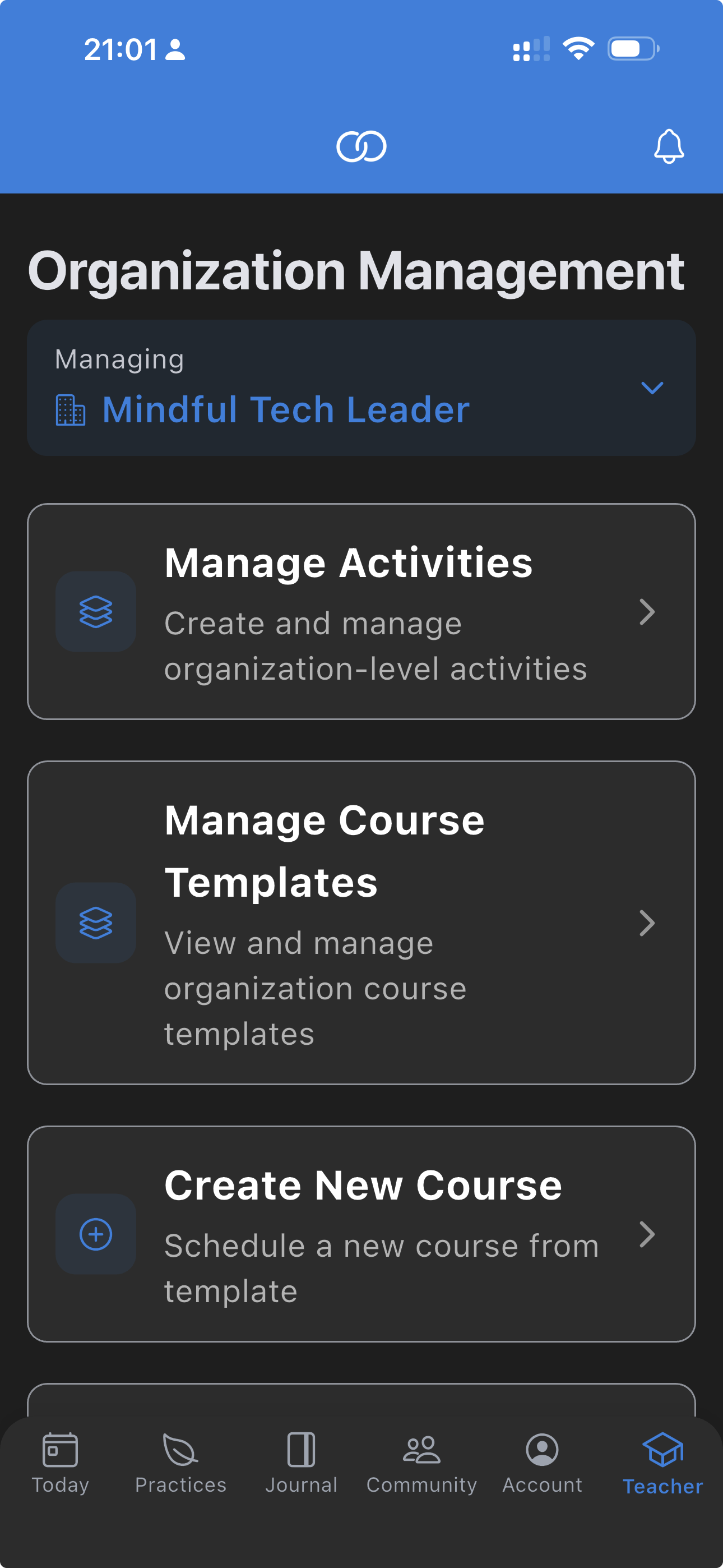
When you sign in to the app with a Teacher or Admin account, you will see a Teacher tab at the bottom of the screen. This is where you manage everything about your courses and content.

The Teacher tab in the app showing Organisation Management with options for Manage Activities, Manage Course Templates, and Create New Course
Templates
Your master curriculum design. A template defines the structure and content of your programme: which sessions to include, what activities go in each session, and in what order. Create a template once, then reuse it for multiple course cohorts. Think of it as a lesson plan.
Courses
Individual cohorts running your template. Each course has its own start date, enrolled participants, and optional customisations. You might run the same template as a January cohort and a September cohort, each as a separate course. Think of each course as a class that follows the lesson plan.
Activities
The content cards within your template or course. Each activity is a single piece of content: a text card with reading material, a guided audio practice, a video session, a live class link, a practice reminder, or a feedback form. Activities are grouped into sessions on your timeline.
Participant Management
View who is enrolled in each course. You can see participant names, enrolment dates, and engagement status. Participants are added to courses through enrolment codes or direct invitation.
Analytics
See how participants interact with your content. Track which activities are completed, how often participants practise, and overall engagement patterns. AI Insights (coming soon) will provide deeper analysis and recommendations.
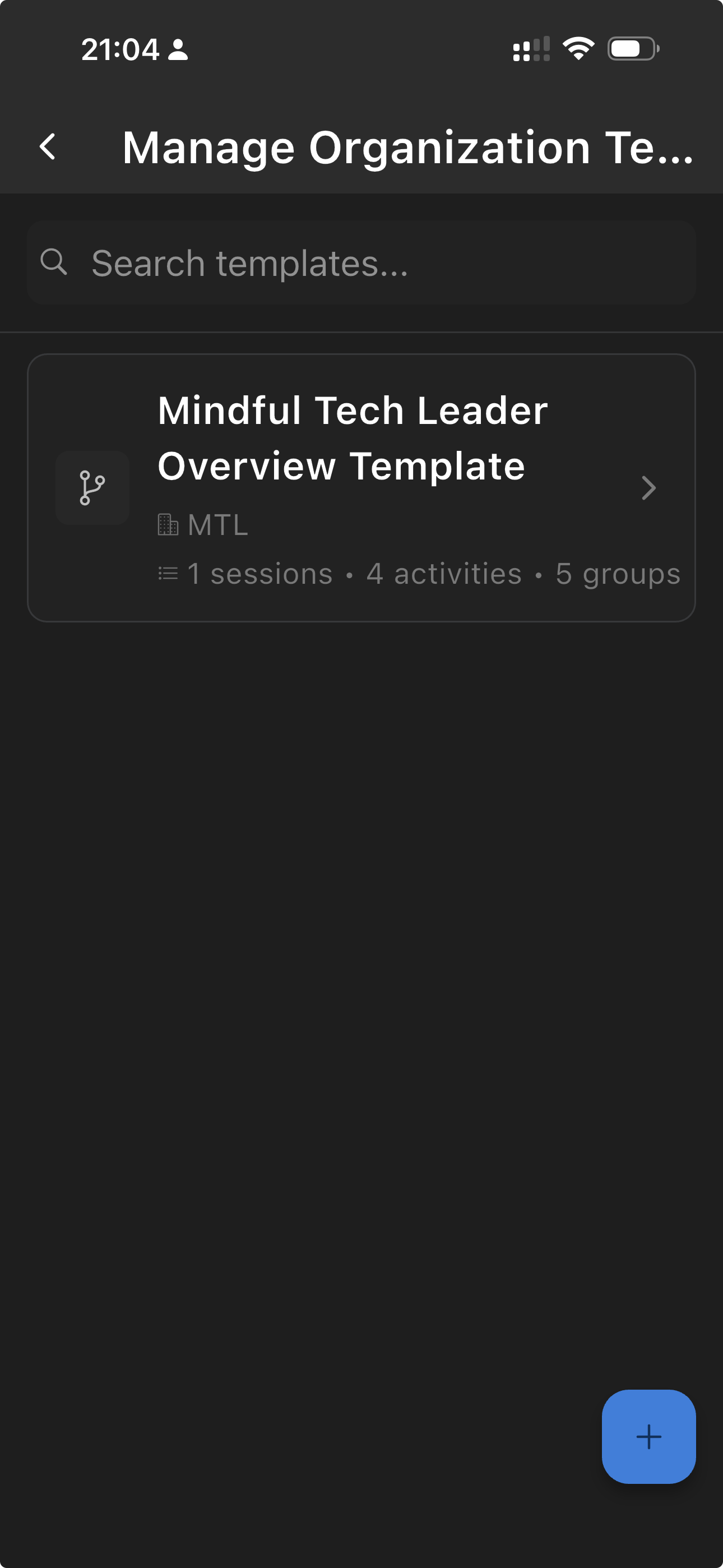
Template list view showing a course template with its session and activity count

Your template list

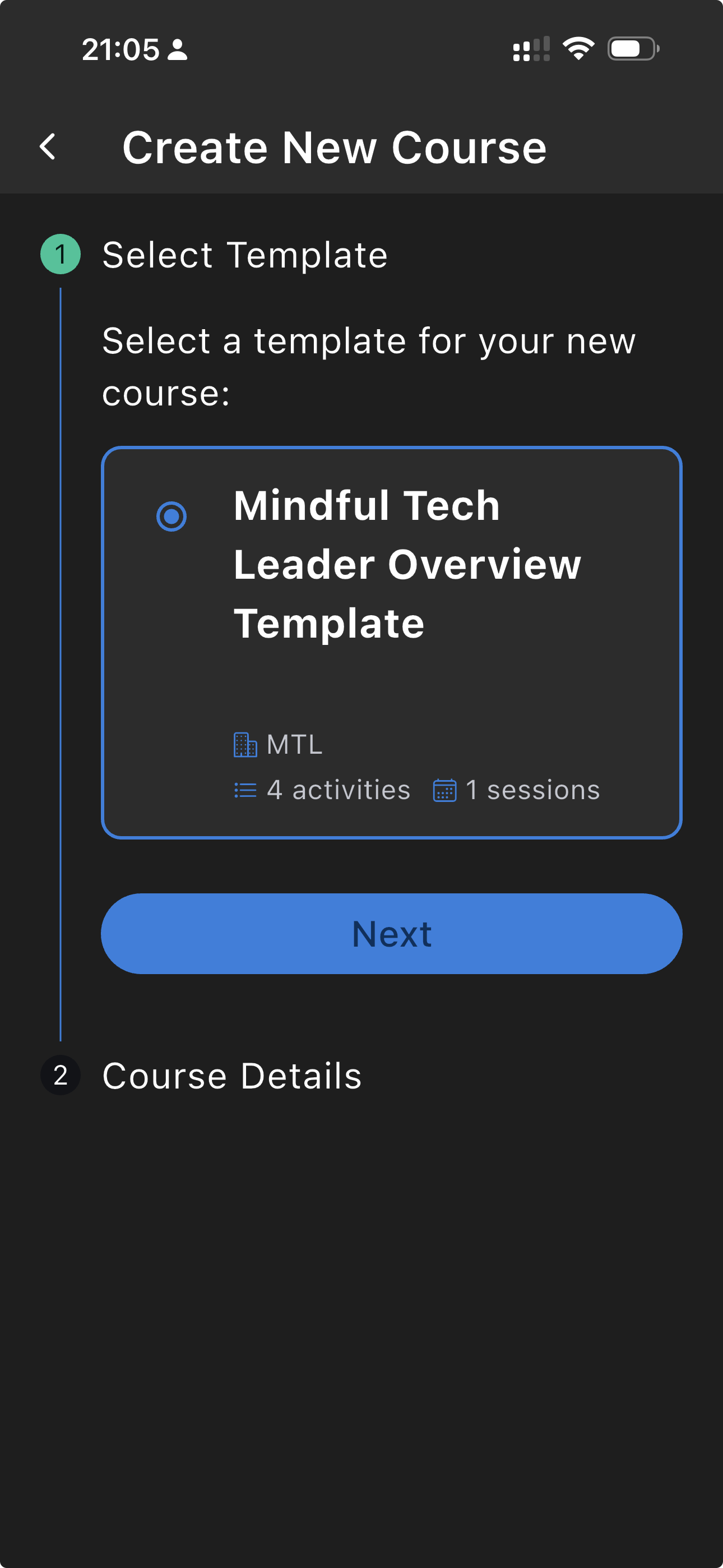
Create New Course wizard showing template selection step with a Next button

Creating a course from a template


Getting your content ready

The app supports several content formats, so you can deliver your programme in the way that suits your teaching style.

Supported formats

Text with markdown formatting
Audio files (guided practices)
Video files (MP4, MOV, WebM, AVI)
Images
Practice timers
Feedback forms
Live class links
Reminders and notifications

Initial setup

When you first start with the platform, BeWell IT helps you get your content digitalised and structured for the app. This typically involves:

  • Reviewing your existing course materials
  • Structuring them into a template with sessions and activities
  • Uploading audio and video files
  • Formatting your text content with markdown

Updating content yourself

After the initial setup, you can make changes at any time from the Teacher tab. You can:

  • Edit the text in any activity
  • Replace audio or video files
  • Add new activities to your template
  • Reorder sessions and activities
  • Create new courses from your template

Formatting text content: The text card editor uses markdown for formatting. If you are not familiar with markdown, see our Markdown Formatting Guide for a quick reference, including a tip for exporting directly from Google Docs.

Next
Markdown Formatting Guide

Last updated: 9 February 2026